How to export the report from Zoom
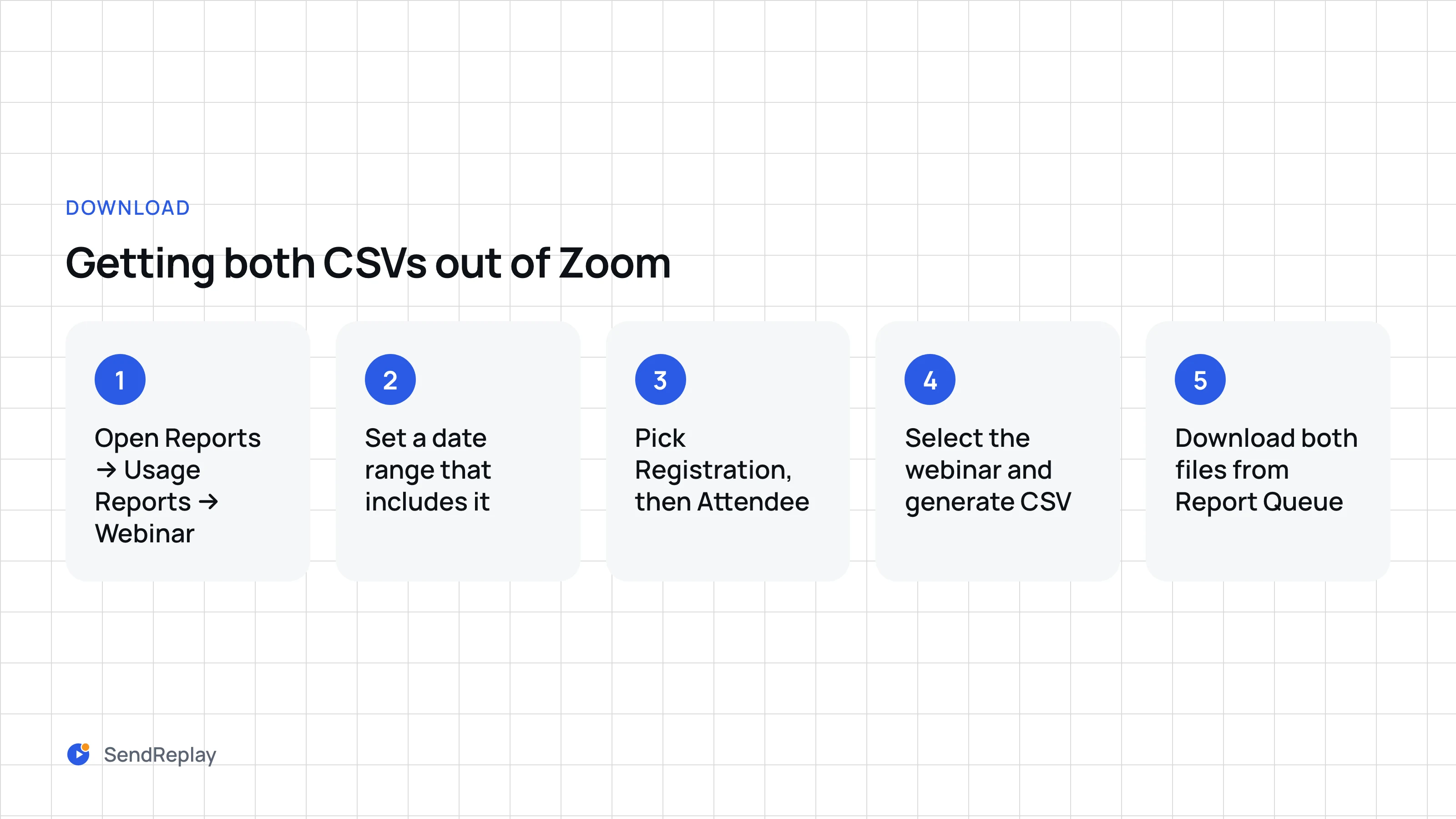
- Sign in at zoom.us in a browser and open Reports → Usage Reports → Webinar. Set a date range that includes the webinar.
- Choose the Attendee report, select the webinar and generate the CSV.
- Open the Report Queue tab, download the file and drop it into the box above.
When registration was required, Zoom's attendee report lists the registrants who never joined as rows marked Attended: No, so that one file is usually enough. If yours has no such rows, generate the Registration report from the same page and add it as a second file. Our Zoom attendance report guide covers who can open these reports and why the attendee report is sometimes late.
What the tool does
Dedupes rejoins
Zoom writes one row per join. Rows are grouped by email, ignoring capitals and stray spaces, so each person appears once.
Totals minutes
Time in session is added up across a person's rows. Set a minimum and anyone below it moves to the no-show list.
Separates no-shows
Approved registrants with no join are the no-shows. Hosts, panelists, and cancelled, denied or pending registrants are left out of both lists.
People who joined without an email, such as phone dial-ins, are listed separately as unmatched attendees and are never counted as no-shows. Each list downloads as a CSV that opens cleanly in Excel, or you can copy the emails straight into a BCC field. From there, the guide to sending a webinar recording to registrants covers the share link, the passcode and the two emails.
Your file stays in your browser
The CSV is read and processed by JavaScript on this page. There is no upload endpoint, nothing is stored, and closing the tab discards everything. The only analytics the page sends are anonymous events, such as the size range of the file and which button was clicked. Names and email addresses are never included.
Common questions
Where do I find the Zoom attendee report?
Sign in at zoom.us in a browser and open Reports → Usage Reports → Webinar. Set a date range that includes the webinar, choose the Attendee report, select the webinar and generate the CSV, then download it from the Report Queue tab. The desktop app has no reports.
Why do some attendees appear twice in Zoom's report?
Zoom writes one row per join, so anyone who dropped and reconnected, or switched from a laptop to a phone, has several rows. This tool groups the rows by email, adds up the minutes and keeps the earliest join time, so each person appears once.
Does this work for Zoom Meetings?
Only for meetings with registration turned on, and you need both files: the meeting's registration report and its participants report. A participants report on its own lists who joined but not who was expected, so there is nothing to compare it against.
Is my registrant data uploaded anywhere?
No. The CSV is read and processed by JavaScript in your browser, and this page has no upload endpoint. The only analytics it sends are anonymous events such as the size range of the file, never names or email addresses.
How do I email no-shows the recording?
Download the no-show list or copy the emails, then send the recording's share link and passcode from your own email tool. To skip the export altogether, SendReplay connects to Zoom and emails the replay to attendees and no-shows automatically when the recording is ready, for $29 a month.