A Zoom meeting is a room where everyone can talk, share a screen and be seen. A Zoom webinar is a stage: the host and panelists present, attendees watch, and registration and reports are built around that audience. Use a meeting when the people in it need to work together, and a webinar when you are presenting to a crowd and need to know afterwards who came.
This page compares the two during the event, in licence and capacity, and after the event ends. That last part is where most comparisons stop and where the formats differ most for anyone who has to send the replay to the people who signed up.
Who can talk, share and be seen
In a meeting every participant is on the same footing. Anyone can turn on their camera and microphone unless the host stops them, everyone sees the participant list, and screen sharing is open to the host alone or to all participants, a switch the host sets. The host and any co-hosts can mute people, remove them or lock the room, but by default it is a conversation.
A webinar has four roles. The host and co-hosts run it. Panelists are the speakers: they have video, audio and screen share, much like meeting participants. Attendees join view-only. Their camera stays off and cannot be turned on, they join muted, and they cannot share a screen. Other attendees do not see their names; the host and panelists do.
So a webinar is mostly listening, for attendees, but not only listening. They take part through Q&A, the chat when the host enables it, polls, and the raise-hand button. When a hand goes up, the host can Allow to talk, which unmutes that attendee without turning on video, or Promote to panelist, which hands them a camera and screen share for the rest of the session. Zoom's meeting and webinar licence comparison lists the full feature split.
Licence, capacity and time limits
Every Zoom account can host meetings. Webinars need the Zoom Webinars add-on on top of a paid plan, assigned to the host who will run them, and it is sold in capacity tiers. Without it the option to schedule a webinar does not appear.
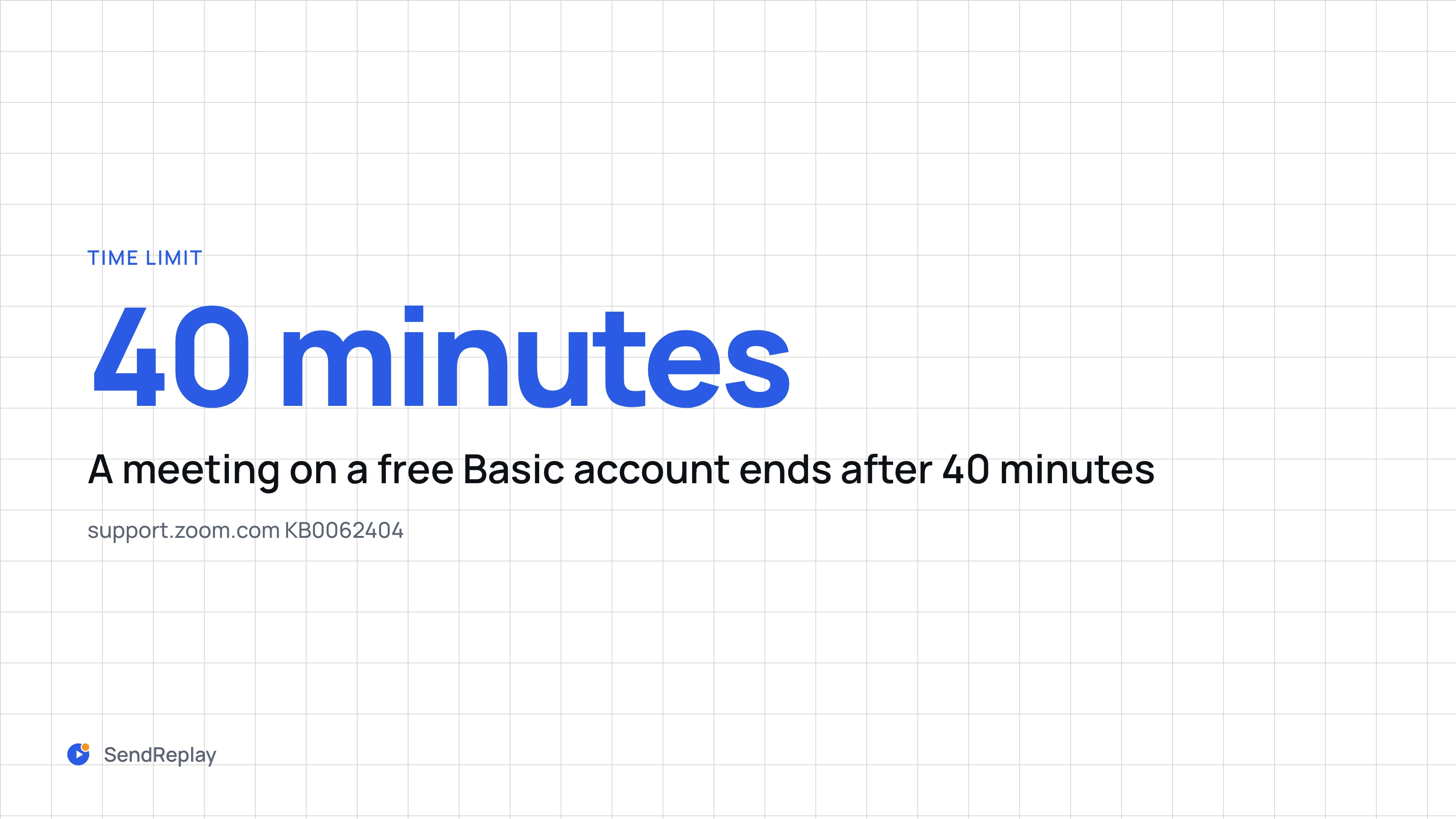
Zoom's licence comparison page gives the numbers. A meeting on Basic or Pro holds 100 participants, and the Large Meeting add-on raises that cap without changing how the room behaves. Webinar tiers go up to 1 million view-only attendees. A meeting on a free Basic account ends after 40 minutes; Pro meetings and webinars run up to 30 hours. Cloud recording, which the rest of this page depends on, comes with the paid plans.
A large audience is the usual reason to look at webinars, but it is not the only one. A 60-person product demo fits inside a Pro meeting; it still behaves like a meeting, with every guest able to unmute and every name on screen.
Registration and the reports you get
Both formats can require registration on a paid plan, and both then keep a list of who signed up. The difference is what Zoom builds on that list.
A webinar has its own report set under Reports → Usage Reports → Webinar: the registration report, the attendee report with join and leave times, and reports for performance, Q&A and polls. Matching the registration report against the attendee report gives you the no-shows, which the webinar attendance report guide walks column by column.
A webinar also has an Email Settings tab with two follow-up emails, one to attendees and one to absentees, sent on a day you pick between 1 and 7 days after the start time (Zoom: webinar email settings). Meetings have no equivalent. A meeting with registration gives you a participant list, and anything you send afterwards you write and address yourself.
What happens to the recording
Recording works the same way in both. A cloud recording lands under Recordings → Cloud Recordings in the web portal, Zoom emails the host when it is ready, and the Share dialog sets the passcode, expiry and download switches for either format.
What differs is who should get the link. After a meeting it is usually the people you invited, and you know who they are. After a webinar it is a registrant list of tens or thousands of addresses, split into people who attended and people who did not, and they want different emails. Zoom's follow-up emails do not fill in the recording link for you, so the host pastes it in or sends both emails by hand. The guide to sending a webinar recording to registrants covers that loop step by step.
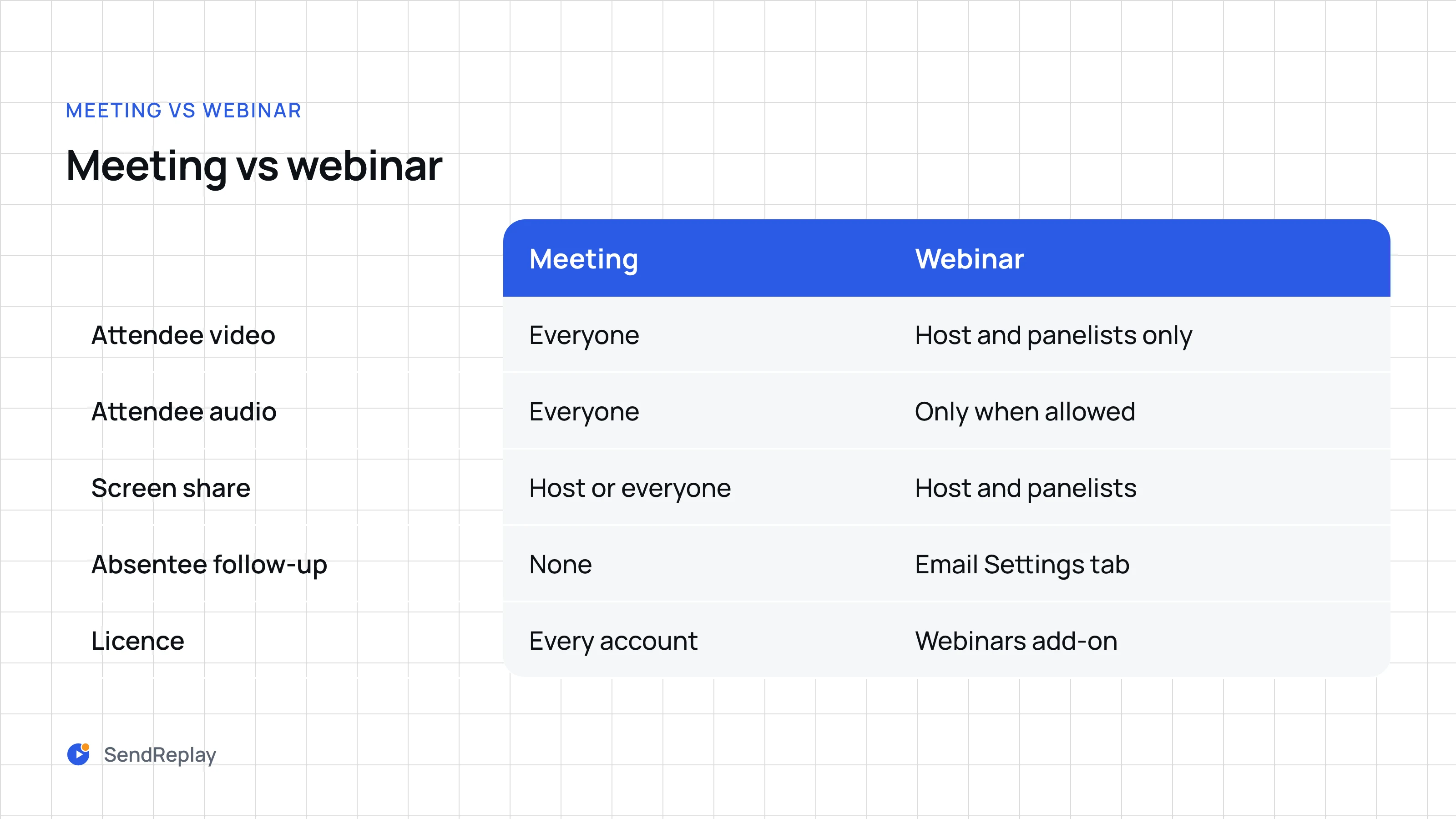
Meeting
Attendee video: everyone. Attendee audio: everyone. Screen share: host or everyone. Absentee follow-up: none. Licence: every account.
Webinar
Attendee video: host and panelists only. Attendee audio: only when allowed. Screen share: host and panelists. Absentee follow-up: Email Settings tab. Licence: Webinars add-on.
Which one to use
- A meeting for team calls, workshops, classes and small customer sessions: anything where the people in the room are expected to speak, and where the audience fits inside your plan's cap.
- A webinar for product launches, public talks, training for outside audiences and any event with a sign-up page: a few speakers, many listeners, and a host who wants to decide who is heard.
- A webinar, again, whenever the follow-up matters. If you need to know who registered but never joined, or to send each group a different email with the recording, the reports and the absentee list exist only on the webinar side.
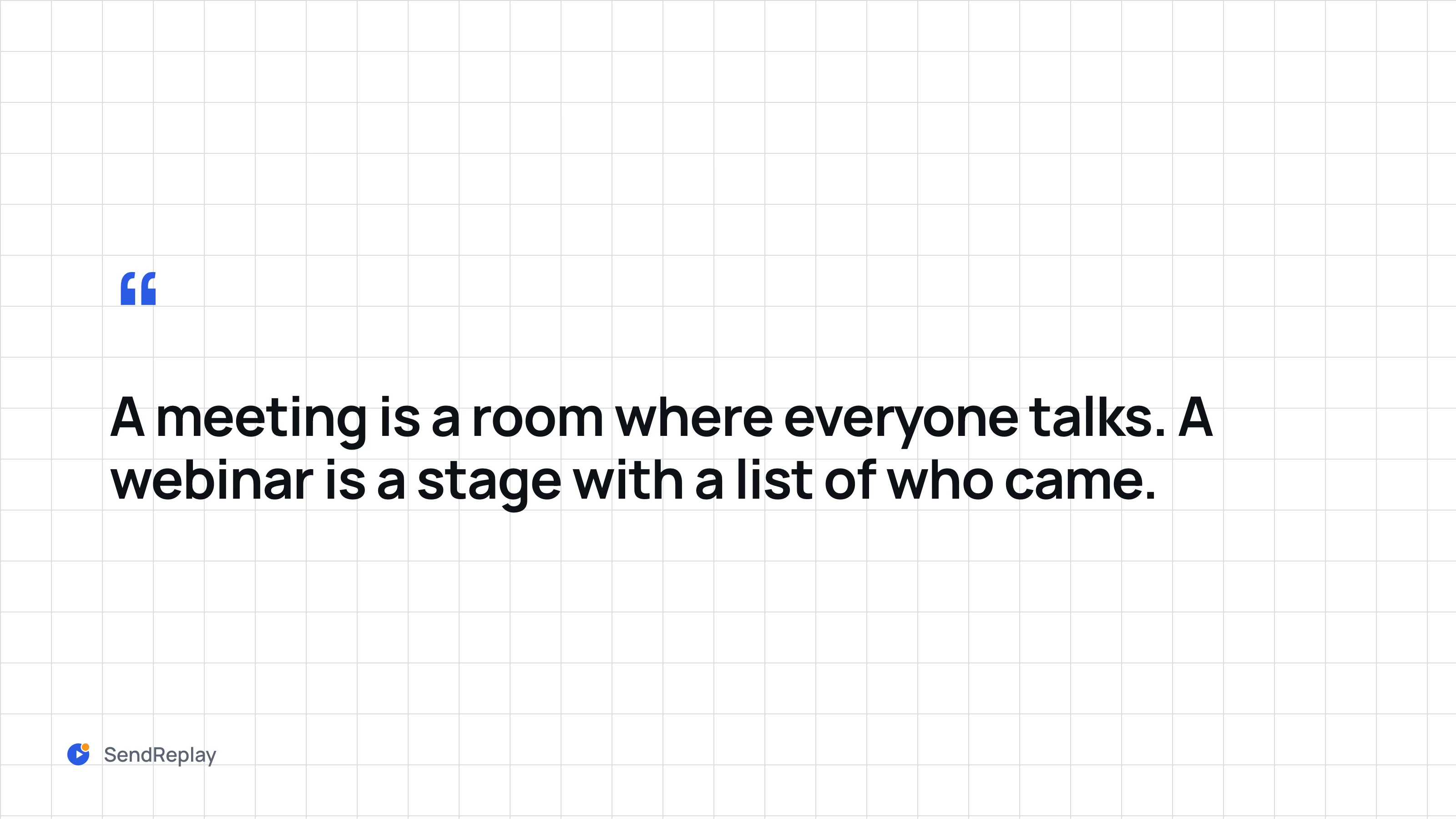
A meeting is a room where everyone talks. A webinar is a stage with a list of who came. Pick by how many people need a microphone, then by what you have to do once it ends.
The automatic version, for webinars
SendReplay sends the replay after a Zoom webinar without the pasting. When the cloud recording is ready we wait the send delay (15 minutes by default) so the attendee report can settle, then email the recording to people who attended and a different message to people who did not, under your From name. It needs the Webinar add-on, cloud recording and registration required. Meetings are ignored today, even ones with registration; if you need meeting support, tell us. The user guide has the full sequence.
Common questions
Why use a Zoom webinar instead of a meeting?
Use a webinar when a few people present to an audience that mostly watches, when you need registration, or when you want to know afterwards who came and who did not. The host keeps control of who is seen and heard, attendees ask through Q&A, and Zoom gives you attendee and absentee reports and follow-up emails that meetings do not have.
Can people see you in a Zoom webinar?
Only if you are the host, a co-host or a panelist. Attendees join view-only: their camera stays off and cannot be turned on, and other attendees do not see their names in a participant list. The host and panelists can see who is attending, and anything an attendee posts in chat or Q&A shows their name unless they post anonymously where the host allows it.
Is a webinar only listening?
Mostly, for attendees. They watch and listen, and take part through Q&A, chat when the host enables it, polls, and the raise-hand button. The host can let a raised hand talk or promote an attendee to panelist for the rest of the session. If everyone needs to speak, a meeting is the better format.
Can attendees talk in a Zoom webinar?
Not by default. Attendees join muted and cannot unmute themselves. An attendee raises their hand, and the host or a co-host can allow them to talk, which turns on their microphone but not their camera, or promote them to panelist, which gives them audio, video and screen share.