Zoom does not email the recording of a webinar to the people who registered for it. The host does, by hand: record to the cloud, wait for the recording to be ready, copy the share link and passcode, split the registrant list into attendees and no-shows, and send two emails. This guide walks that loop with the exact Zoom menu paths, explains why Zoom's own follow-up email cannot carry the recording, and ends with the automatic version.
What hosts ask Zoom, and what Zoom answers
The Webinars board of the Zoom Community has this question asked four different ways over five years. One host wants recordings to go out automatically to every registrant, attended or not. Another finds that the follow-up email has no option to include the recording link, and that their HubSpot connector does not pull the link across either. A third was told during a sales demo that cloud recordings would be sent to registrants and attendees, ran a test webinar, and nothing arrived. A fourth has the recording and the registration list and wants to avoid a mass email from Outlook for fear of being flagged as spam.
The answers, from a Zoom employee and a Community Super Champion, agree. Zoom does not send the recording link automatically; you paste it into the follow-up email yourself, and Zoom invites you to file a feature request. The one useful lead is in the accepted answer to the fourth thread: the webinar's Email Settings tab has a follow-up email for attendees and another for absentees, each with a text box where the link can be added, and you have until seven days after the event to do it. The rest of this guide is what those answers leave out.
Record to the cloud and wait for "ready"
A local recording lands on the host's computer and has no link to send. Everything below assumes a cloud recording, which needs a paid plan with the Webinar add-on.
Set it before the webinar so nobody has to remember to press record. When scheduling, open the webinar's options and turn on Automatically record webinar → In the cloud. To make that the default, sign in at zoom.us and open Settings → Recording → Automatic recording → Record in the cloud; the default applies to webinars scheduled after the change, so existing ones need the per-webinar switch (University of Minnesota: record a meeting or webinar).
When the webinar ends Zoom processes the file and emails the host that the cloud recording is now available. That email holds a host-only link to manage the recording, a share link for viewers, and the passcode if one is set. Zoom does not promise a processing time, so treat the email as the signal rather than the clock. The attendee report usually lands a few minutes after the recording, which matters for the two-list step below.
Where the share link and passcode live
If the email is gone, the same link is in the web portal under Recordings → Cloud Recordings. Open the recording and click Share. The dialog holds the switches that decide what a registrant sees: share publicly or only with signed-in users, a passcode that an admin can force on for the whole account, an expiry date for the link, whether viewers can download the file, and whether they see the transcript. Copy sharing information puts the link and the passcode on the clipboard together, which is the form registrants need.
Send the link, not the file. The Community Super Champion in the first thread makes the case: a webinar MP4 is large, many mail services block attachments that size, and the recording already sits on Zoom's cloud storage with a viewing page. The flip side is that the link lives only as long as the recording does. Cloud storage has a quota and an optional auto-delete, so keep the recording until registrants have had their turn, or move the file somewhere permanent before you clean up.
Two lists, not one
If everyone gets the same email, one export is enough: Reports → Usage Reports → Webinar, pick the webinar, generate the registration report, and the CSV is your recipient list. It exists only when registration was required, which is also the condition for everything else on this page.
If attendees and no-shows should read different messages, generate the attendee report from the same page and match the two files by email. Registrants missing from the attendee report are the no-shows. The attendance report guide walks the columns and the traps: people who joined twice, registrants still pending approval, panelists listed among attendees. Because the attendee report is built after the webinar ends, generate it once the recording email has arrived, not before.
Sending the two emails by hand
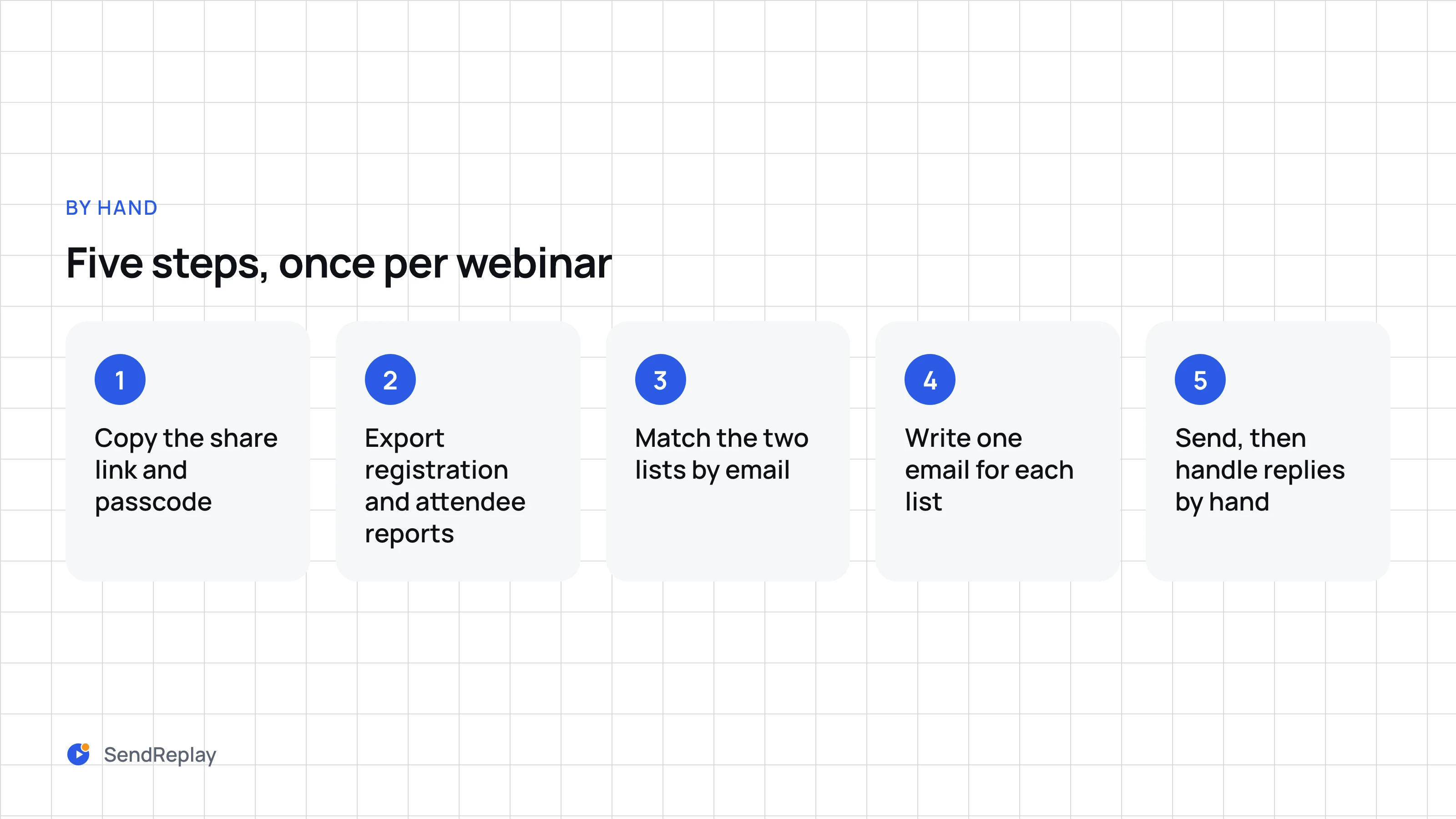
- Wait for Zoom's email that the cloud recording is available, then copy the share link and passcode.
- Export the registration report and the attendee report from Reports → Usage Reports → Webinar.
- Match the two lists by email: found means attended, missing means no-show.
- Write one email for each list. Attendees get a thank-you and the recording to rewatch or share. No-shows get a "sorry we missed you" and the same recording. Both carry the link and the passcode on separate lines, the webinar title and date, and one next step.
- Send, then handle the replies, bounces and unsubscribe requests by hand.
Send from your own address so replies reach a person, and put every recipient in BCC. The host in the fourth thread was right to worry about the spam flag: a few hundred BCC recipients from an ordinary mailbox is the shape spam filters look for. Keep batches small, or send through a mailing service that adds an unsubscribe link, because registrants who did not ask for follow-ups will mark the message as spam otherwise. Either way the loop takes an evening per webinar and starts only when Zoom says the recording is ready.
Why Zoom's follow-up email cannot carry the recording
Zoom's built-in follow-up looks like the answer, and the accepted community answer points to it. Open the webinar, click the Email Settings tab, and click Edit next to the attendee email or the absentee email. The account-wide default sits under Account Management → Account Settings → Webinar → Emails. You can change whether each email sends, which day it sends, the subject line, and the text appended to the end of the body (Zoom: customizing webinar email templates and settings). Three limits follow from that list.
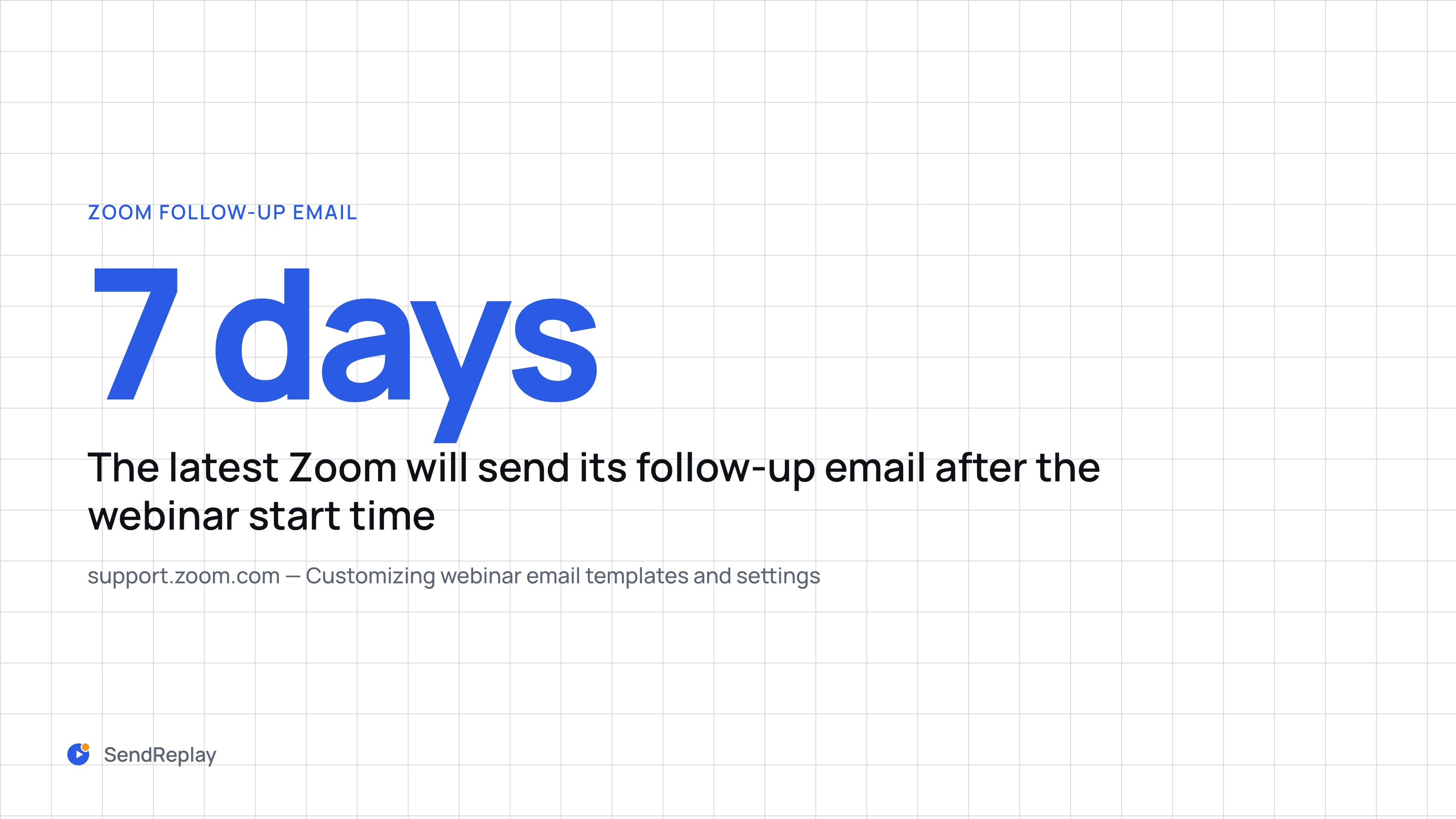
- It is timed by days, not by the recording. The send day is 1 to 7 days after the webinar start time. The earliest option is a full day later than most hosts would like, and the email goes out whether or not you remembered to paste the link by then.
- The link is typed in by hand. The appended text is static. There is no variable for the recording URL or passcode among the email variables Zoom exposes, so a recurring webinar needs a fresh paste for every occurrence, inside the seven-day window.
- You do not control who it comes from. It is sent only when registration is required. On Pro accounts the From address is Zoom's and cannot be changed; you can set a reply-to address, and a reply-to name only on Business or higher. The pre-written body text is editable by admins alone.
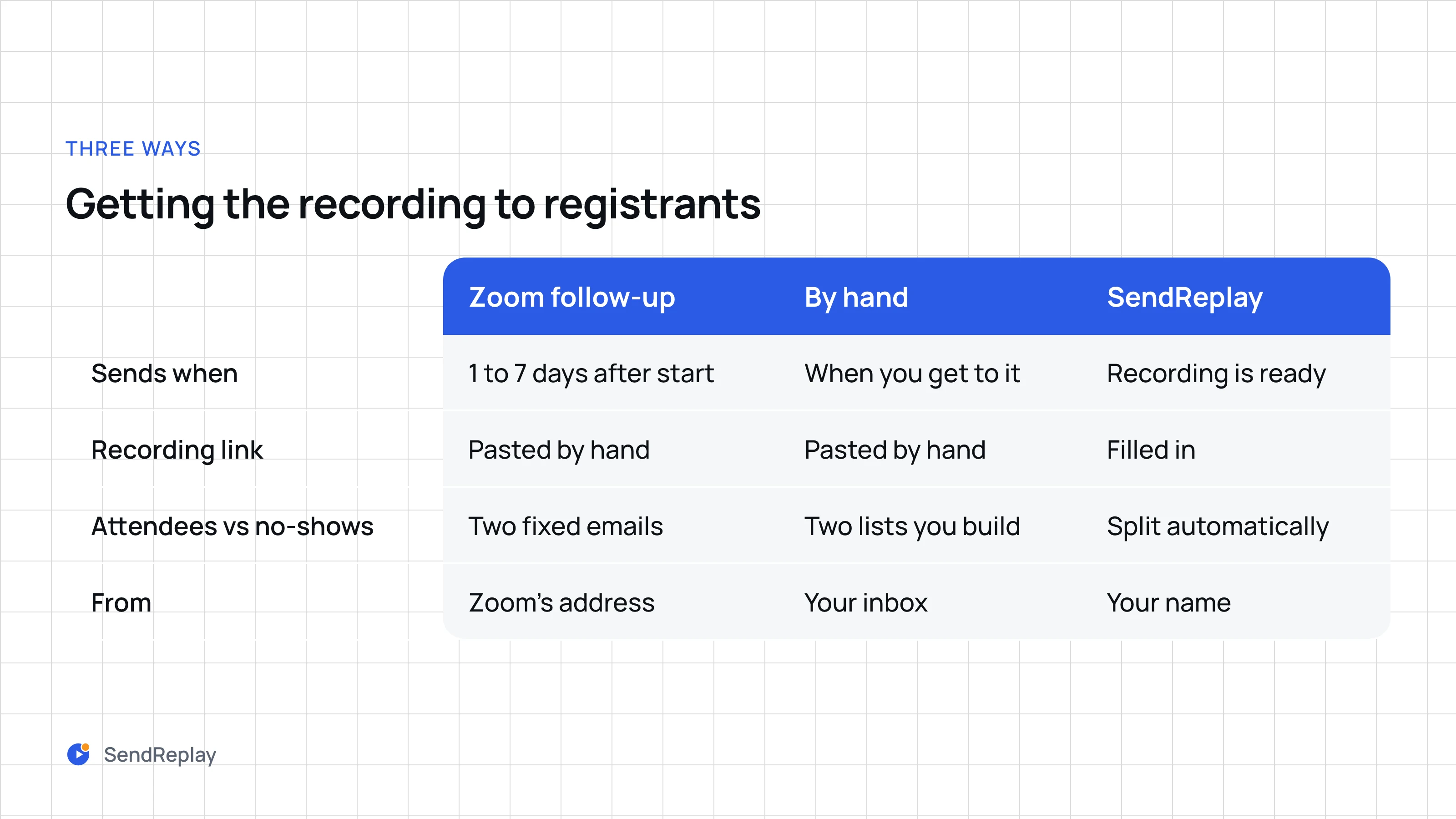
Zoom follow-up
Sends 1 to 7 days after start. Link pasted by hand. Two fixed emails for attendees and absentees. From Zoom's address.
By hand
Sends when you get to it. Link pasted by hand. Two lists you build from the reports. From your inbox.
SendReplay
Sends when the recording is ready. Link filled in. Attendees and no-shows split automatically. Under your name.
The automatic version
SendReplay runs the five steps above as one event. Connect your Zoom account once and write the two emails once. When Zoom reports that a webinar's cloud recording is ready, we wait the send delay (15 minutes by default) so the attendee report can catch up, pull the approved registrants and the attendee report, match them by Zoom registration, then email, then name, and send two emails under your From name: the recording and its passcode to people who attended, a different message to people who did not. If the report is still missing we retry three times, ten minutes apart; if it never appears, every registrant receives the attended email and the webinar is flagged so you know. Replies go to your account email unless you set another, and every message carries a one-click unsubscribe. Prefer a final look? Review mode holds everything until you click Approve. The user guide has the exact sequence and the home page shows the manual loop next to it.
The limits are the same ones this page has repeated. Registration must be required, because that is where the recipient list comes from. Only webinars are supported; meetings are ignored, even ones with registration. The email is sent from our address under your From name, and sending from your own domain is not available yet; tell us if you need it. Pricing is one plan at $29 a month for unlimited webinars, and the common questions page covers what to do when a whole list received the attended email.
Common questions
How do I provide a link to the recording in the post-webinar email?
Open the webinar in the Zoom web portal, click the Email Settings tab, and click Edit next to the attendee follow-up email or the absentee follow-up email. Turn it on, pick a day between 1 and 7 days after the webinar start time, and paste the recording's share link and passcode into the text box that is appended to the end of the email. Zoom does not fill the link in for you, so do this after the recording-ready email arrives and before the chosen day.
Can Zoom automatically email the recording to participants?
No. Zoom emails the host when a cloud recording is ready, but it never sends that link to registrants or attendees on its own. The built-in follow-up emails go out on a fixed day after the webinar and only carry text you typed in advance. To send the recording automatically you need something listening for the recording-ready event, which is what SendReplay does.
Can I send the recording to people who registered but did not attend?
Yes, as long as registration was required for the webinar. Zoom's absentee follow-up email goes only to registrants who never joined, and you can paste the recording link into it. For your own email, export the registration report and the attendee report from Reports → Usage Reports → Webinar and match them by email; the registrants missing from the attendee report are the no-shows.
Should I send the recording file or a link to it?
Send the link. A webinar MP4 runs to hundreds of megabytes or more, most mail servers reject attachments that size, and the file is already on Zoom's cloud storage with a share page built for viewing. Set the passcode, expiry and download switches in the Share dialog, and keep the recording in Zoom until registrants have had time to watch it, because deleting it breaks every link you sent.