Zoom keeps a webinar's attendance in the web portal under Reports, as two separate exports: a registration report for who signed up and an attendee report for who joined. This guide covers where those reports live, who can open them, what each column means, why the attendee report is sometimes late or incomplete, and how to turn the two files into an attended and no-show list.
Where the webinar reports live
Sign in at zoom.us in a browser; the desktop app has no reports. As the host, open Reports → Usage Reports → Webinar in the left menu, set a date range, and every webinar you hosted in that window is listed. For each one Zoom offers a registration report, an attendee report and a poll report, among others.
As an account owner or admin, the same page sits under Account Management → Reports → Usage Reports → Webinar, and it lists every host's webinars rather than only your own. Owners and admins on a Business or Education plan also get the Dashboard, which shows live and past webinars with a participant list per session. A host without the admin role never sees it, which is why the colleague you asked for help may be looking at a screen you do not have (Zoom: Dashboard for meetings and webinars).
If there is no Webinar tab at all, check two things. The account you are signed in to must hold the Webinar add-on, because webinar reports only exist on a licence that can host webinars. And you must be on Usage Reports, not the Active Hosts or Meeting pages that most help articles about "attendance" send you to; those describe meetings, and the webinar flow is different.
Three lists, three jobs
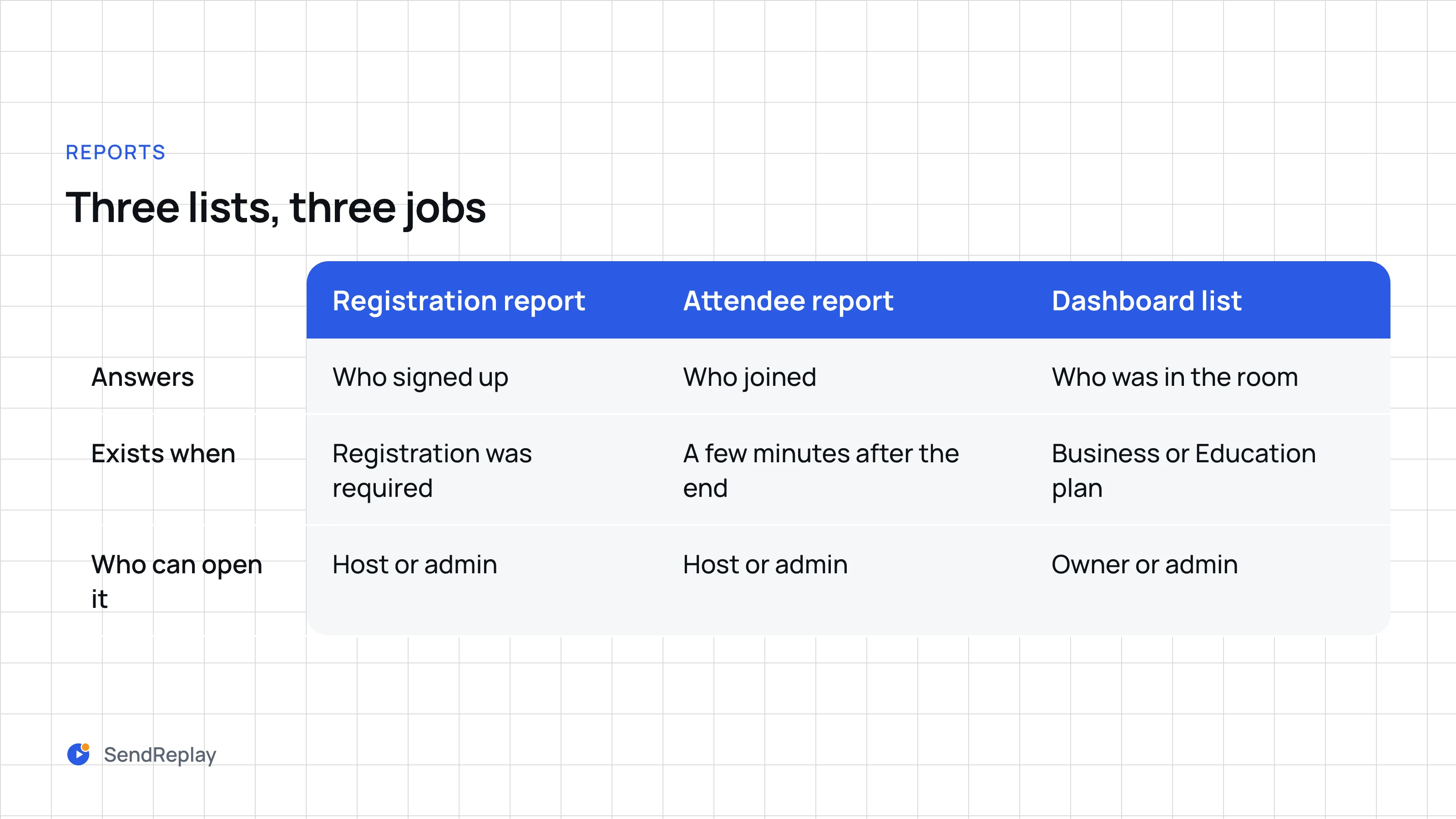
Zoom does not produce one attendance file. Three exports each answer a different question, and the no-show list needs two of them.
Registration report
Who signed up. One row per registrant with name, email, registration time and approval status. It exists only when registration was required, and the host or an admin can open it.
Attendee report
Who joined. One row per join with name, email, join time, leave time and time in session. Zoom builds it a few minutes after the end, for the host or an admin.
Dashboard list
Who was in the room, with device and connection detail. Owner or admin on a Business or Education plan only; one CSV export covers up to 1 month.
Reading the attendee report column by column
The attendee report is the one people mean by "attendance report", and its columns are easy to misread the first time.
- Name: the name the person registered with, or whatever they typed when joining if registration was off. Panelists and alternative hosts are listed in their own block at the top of the file; leave them out of any attendance count.
- Email: the address Zoom knows for that connection. For registered attendees it is the registration email; for anyone else it is the account they signed in with, or blank for a guest who typed only a name. This is the column you match on.
- Join time and leave time: the first and last moment Zoom saw that connection. Someone who dropped and rejoined gets a second row with its own pair, so one person can appear twice.
- Time in session: the minutes between that row's join and leave. For a person with several rows, add the rows up before deciding whether they "stayed".
So the file answers one question: did this email connect, and for how long. It says nothing about the people who registered and never connected. That half lives in the registration report.
Downloading the CSV
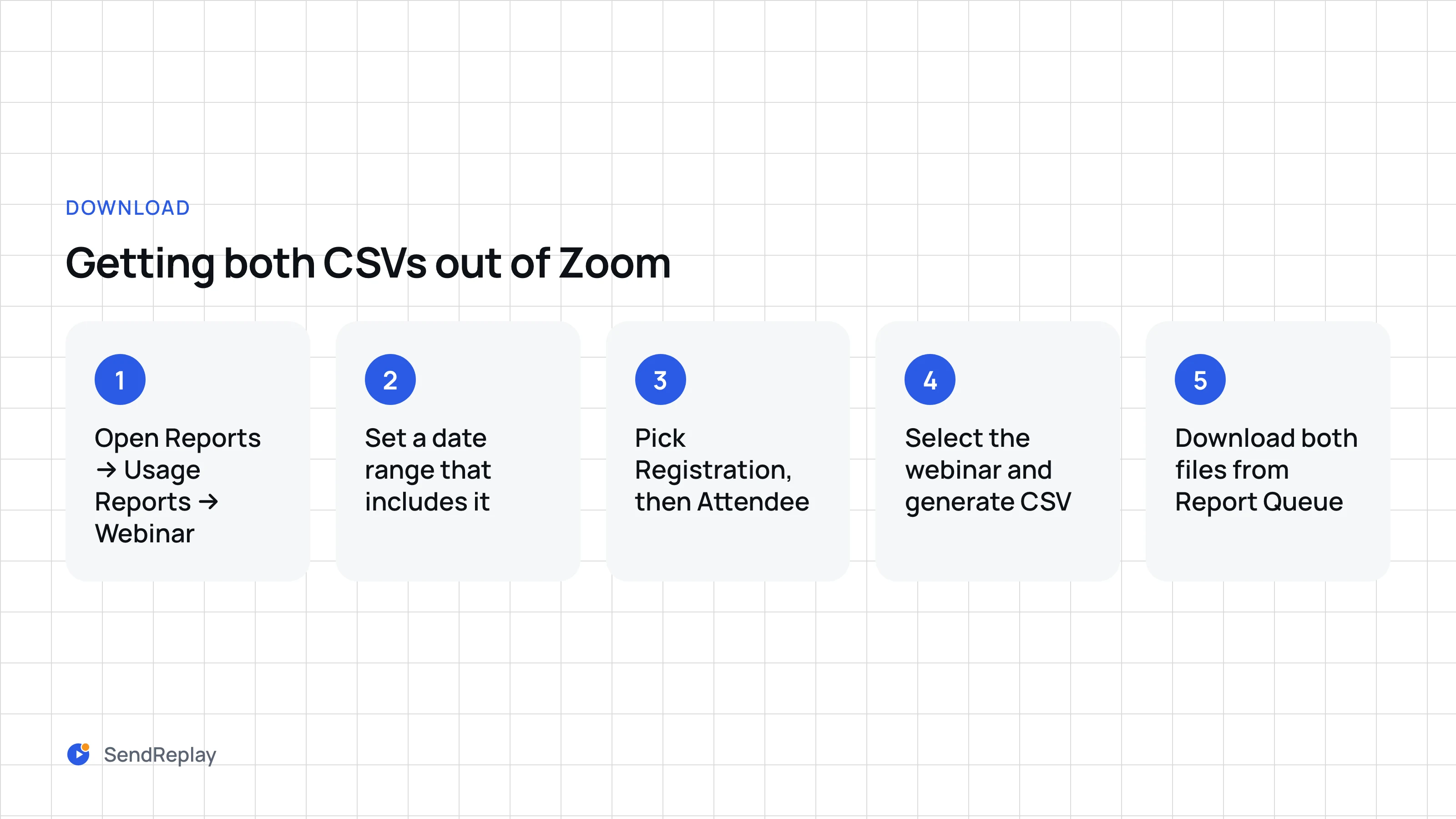
- Sign in at zoom.us and open Reports → Usage Reports → Webinar.
- Set a date range that includes the webinar. The picker covers one month at a time, so a session from six weeks ago needs the range moved back first.
- Pick the report type: Registration first, then come back for Attendee.
- Select the webinar in the list and generate the CSV report.
- Open the Report Queue tab and download both files once Zoom has prepared them.
The Dashboard has its own export for admins, with the same one-month limit: one CSV export covers up to 1 month of sessions, so a quarter takes three downloads. Neither export is a live view. Both are a snapshot of what Zoom had processed when you clicked, which matters for the next section.

Why the report is late or incomplete
- It is still being built. Zoom assembles the attendee report a few minutes after the webinar ends, and the "cloud recording is ready" email often arrives first. Generate the report too early and it is short or empty; wait and generate it again.
- Registration was off. Then there is no registration report, and the attendee report only holds whatever name and email each viewer typed on the way in, which is often a first name and nothing else. Without registration there is no list of who was expected, so there is no no-show list either.
- The same person joined twice. A dropped connection or a switch from laptop to phone produces two rows. Counting rows overstates attendance; count distinct emails instead.
- Registrants were pending approval. With manual approval on, people still marked pending in the registration report never received a join link. They are not no-shows in any useful sense, so filter on approval status before you compare.
- Panelists are in the file. They appear with join and leave times like everyone else, but they were never registrants. Remove them before matching.
From attendee report to no-show list
Neither file is the no-show list. The registration report has everyone who could have come; the attendee report has everyone who did. Subtract one from the other by email.
- Open both CSVs in a spreadsheet and lowercase the email columns. People register with one capitalisation and sign in with another, and a plain text match treats those as different addresses.
- In the registration report, keep only rows whose approval status is approved.
- For each registrant email, look it up in the attendee report. Found means attended; not found means no-show.
- Check the leftovers the other way: attendee emails that are not in the registration report. They joined under a different address, or they are panelists. Decide those by name.
- You now have two lists and can write two emails: the recording for people who attended, and a "sorry we missed you" message with the same recording for people who did not.
Done by hand, this is fifteen minutes of spreadsheet work per webinar, and it can only start once the attendee report has caught up with the recording.
The automatic version
SendReplay runs that loop for you, timed by the report rather than by a clock. When Zoom reports that the cloud recording is ready we wait the send delay (15 minutes by default) so the attendee report can settle, then pull the approved registrants and the attendee report, match them by Zoom registration, then email, then name, and send two emails under your From name: the recording to people who attended, a different message to people who did not. If the report is still missing we retry three times, ten minutes apart; if it never appears, every registrant receives the attended email and the webinar is flagged so you know. The user guide has the exact sequence, and the home page shows the manual loop next to it.
The same limits apply as above. Registration has to be required, because that is where the recipient list comes from, and only webinars are supported; meetings are ignored, even ones with registration. If a whole list received the attended email, the common questions page explains why and which setting gives Zoom more time.
Common questions
How to get attendance records from Zoom?
Sign in at zoom.us, open Reports → Usage Reports → Webinar, set a date range that includes the webinar, choose the Attendee report, select the webinar and generate the CSV. The file lists every join with name, email, join time, leave time and time in session. For who registered but never joined, generate the Registration report as well and match the two by email.
How to see meeting attendance report?
Meetings use a different tab: Reports → Usage Reports → Usage. Find the meeting in the date range and click the number in its Participants column to see and export who joined. A meeting has no registration half unless registration was turned on for it, and meeting reports are not what this guide, or SendReplay, works with.
How do I download an attendance report?
On the Webinar report page, pick the report type, tick the webinar and generate the CSV. Zoom prepares it and lists it under the Report Queue tab, where you download it. Repeat for the second report type if you need both.
Does Zoom automatically record attendance?
For who joined, yes: the attendee report is built after every webinar without any setting to turn on, a few minutes after the session ends. For who registered and stayed away, no: that list only exists once you match the registration report against the attendee report, and Zoom does not email the result to anyone.